The location switch sits in the Export dialog's Metadata section
Removing GPS from a concert export is one checkbox in the dialog that writes the file. In Lightroom Classic, choose File > Export, set the format under JPEG File Settings, then open the Metadata section and check Remove Location Info. Adobe's Lightroom Classic export reference lists it among the metadata controls for exported photos. This checkbox removes GPS data from the exported copy, and it still applies when the Include option in the same section is set to carry other metadata.
The location checkbox and the Include pop-up work as two layers. The Include pop-up sets the general metadata policy, and Remove Location Info is applied on top of whatever you chose there rather than being overridden by it. A concert delivery that has to keep the caption, the keywords and the copyright can keep all three and still leave without coordinates.
This guide covers JPEG exports in Lightroom Classic. Adobe marks these export metadata options unavailable for DNG; do not carry the JPEG steps over to a DNG handoff without checking that separate workflow.
What the GPS option leaves behind
The description is narrow on purpose: GPS metadata. Adobe's Map module page names a wider set of fields when it explains a different control. A saved location marked Private removes the structured IPTC location fields Adobe lists for exported photos taken inside that saved radius: GPS coordinates, Sublocation, City, State/Province, Country and ISO Country Code. That setting says nothing about location words in a caption, keyword or filename, and nothing about what is visible in the image itself.
That list is the useful part of the comparison. Sublocation, City, State/Province, Country and ISO Country Code are IPTC place fields that sit beside the coordinates, and the export option's description does not claim to remove them. Put your own concert metadata on that list: a caption that names the room and the night, keywords that name the artist or the city, and a filename built from the venue and the date.
Worth knowing before you choose an Include option:
Metadata section option | What Adobe says it writes | Effect on a concert delivery |
|---|---|---|
All | Includes all metadata in the exported photo | Captions, keywords and camera details all travel, and the coordinates travel too unless Remove Location Info is also on |
All Except Camera Raw & Camera Info | Includes all metadata except EXIF camera metadata such as Exposure, Focal Length and Date Time | Excludes documented EXIF camera fields, including EXIF Date Time; inspect other date/time and editorial fields separately. |
Copyright Only | Includes only IPTC Copyright metadata | IPTC copyright only; do not assume Creator, Credit Line, captions or keywords are retained. |
Copyright & Contact Info Only | Includes only IPTC Contact and Copyright metadata | IPTC copyright and contact information; inspect any required Creator or Credit Line fields separately. |
Remove Location Info | Removes GPS metadata even if All or All Except Camera Raw & Camera Info is chosen | The option to add to an Include choice, not a replacement for it |
Copyright Only and Copyright & Contact Info Only are defined by what they include rather than by what they hide, which is why neither is a way to keep everything except the coordinates. If the delivery depends on captions or keywords, they take those away as well.
Pick the Include option from the delivery brief rather than from a preset. If the client needs a Creator, Credit Line or caption field, open the exported copy and confirm each one survived. All Except Camera Raw & Camera Info excludes the EXIF camera fields Adobe documents, and other date or editorial fields need their own check in the delivered file.
The Map module option, and what it costs
The Map module holds a second control with different mechanics. In the Saved Locations panel on the left of the module, the plus button opens a New Location dialog where you enter a name, choose a folder, set a Radius and mark the location Private. Adobe describes the Private setting as removing all that IPTC location metadata, coordinates included, when photos in that saved location are exported from Lightroom Classic. It is broader than the export option and it is attached to a place and a radius rather than to a single export.
A saved location marked Private can also remove structured place fields the brief wanted kept: City, State/Province or Country, which a tour archive, venue portfolio or licensing record may rely on to identify where a frame came from. A caption that names the same room is a separate problem, because caption text sits outside the fields the Private setting touches and needs its own review before delivery.
A check that either passes or fails
Keep the archival original as it is and work from an exported copy. A concert delivery is one client copy of files you keep, and leaving the original alone means a changed brief does not force a re-import.
Export one representative frame as a test JPEG with the Include choice and metadata options you intend, including Remove Location Info. Then check five things on that copy: the structured IPTC location fields, the caption, the keywords, the filename, and what is visible in the frame. Private saved locations cover only the documented saved-radius fields, so they are not a way to remove a venue name from a caption or from the picture.
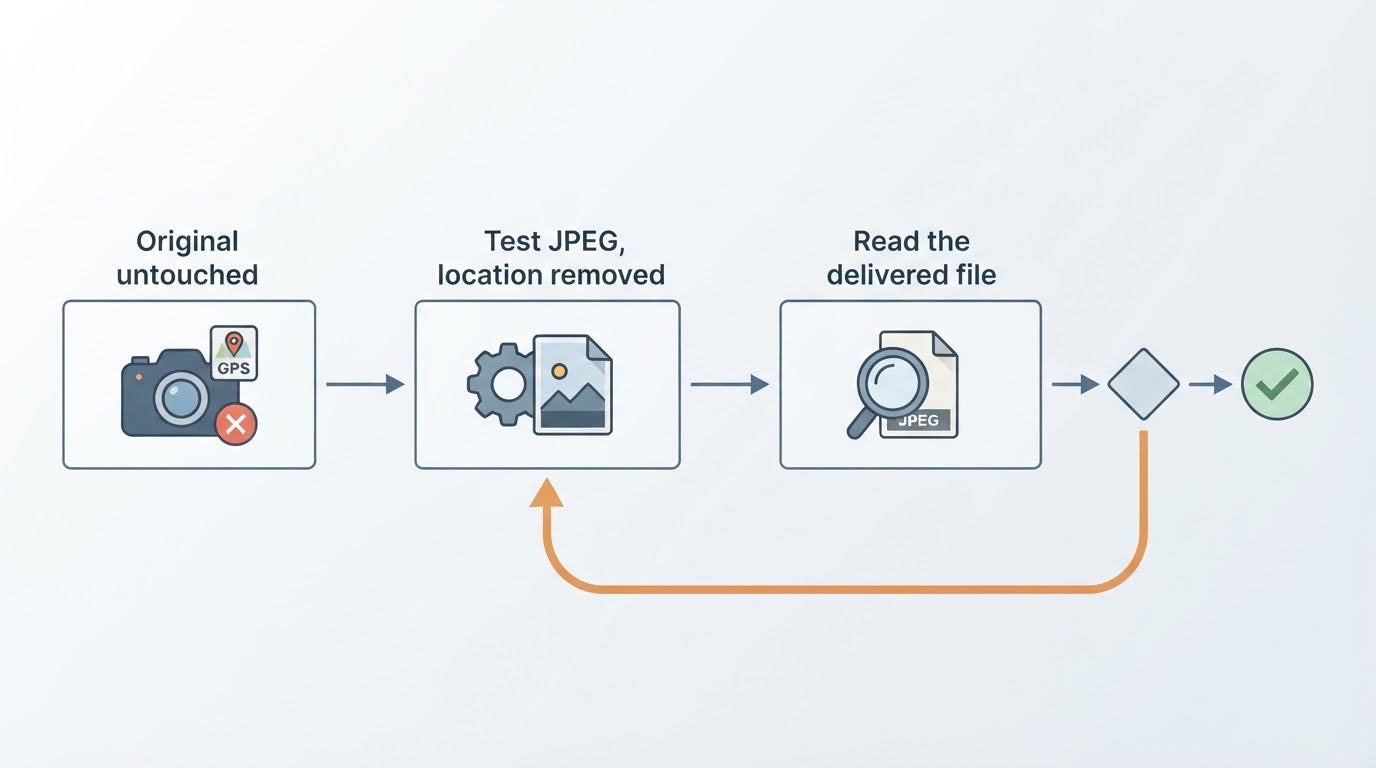
Then reopen the exported copy and read it. Inside Lightroom Classic, Adobe documents the route: choose the Location preset in the Metadata panel of the Library or Map module, then look for coordinates in the GPS field. Do that on the exported file rather than the original, because the original is exactly what you expect it to be. A separate metadata reader does the same job when the client will inspect the file with one.
A test copy passes when all of these are true:
- The GPS field is empty.
- Sublocation, City, State/Province, Country and ISO Country Code are either empty or exactly what the brief asks for.
- Caption, keywords and filename contain no venue, address or client name you did not intend to disclose.
- Creator, copyright and credit are still present and spelled correctly.
- Nothing the delivery depends on was dropped by the Include choice. All Except Camera Raw & Camera Info excludes the EXIF camera fields Adobe documents, EXIF Date Time among them; confirm that any IPTC or other date field the brief requires survived the export.
Any failure means changing one setting and exporting the test again. The loop costs one file, and it turns a question about dialog options into an answer about the copy in your hand.
What the delivered copy cannot promise
Removing coordinates is not anonymization. Venue signage inside the frame, a stage backdrop, a distinctive room, a caption a platform displays under the photo and the account that posted it can all identify the show and its city. Stripping GPS closes the metadata route to a location; the visible frame and the words around it are editing and captioning decisions, not metadata settings.
Leaving the archive original and the catalogue unchanged preserves whatever metadata they already contained, and this guide verifies a delivery copy rather than your library. Wording for captions and credit lines is a separate task, covered in How to Caption Concert Photos.